1
Open sports-calendar.com in your browser
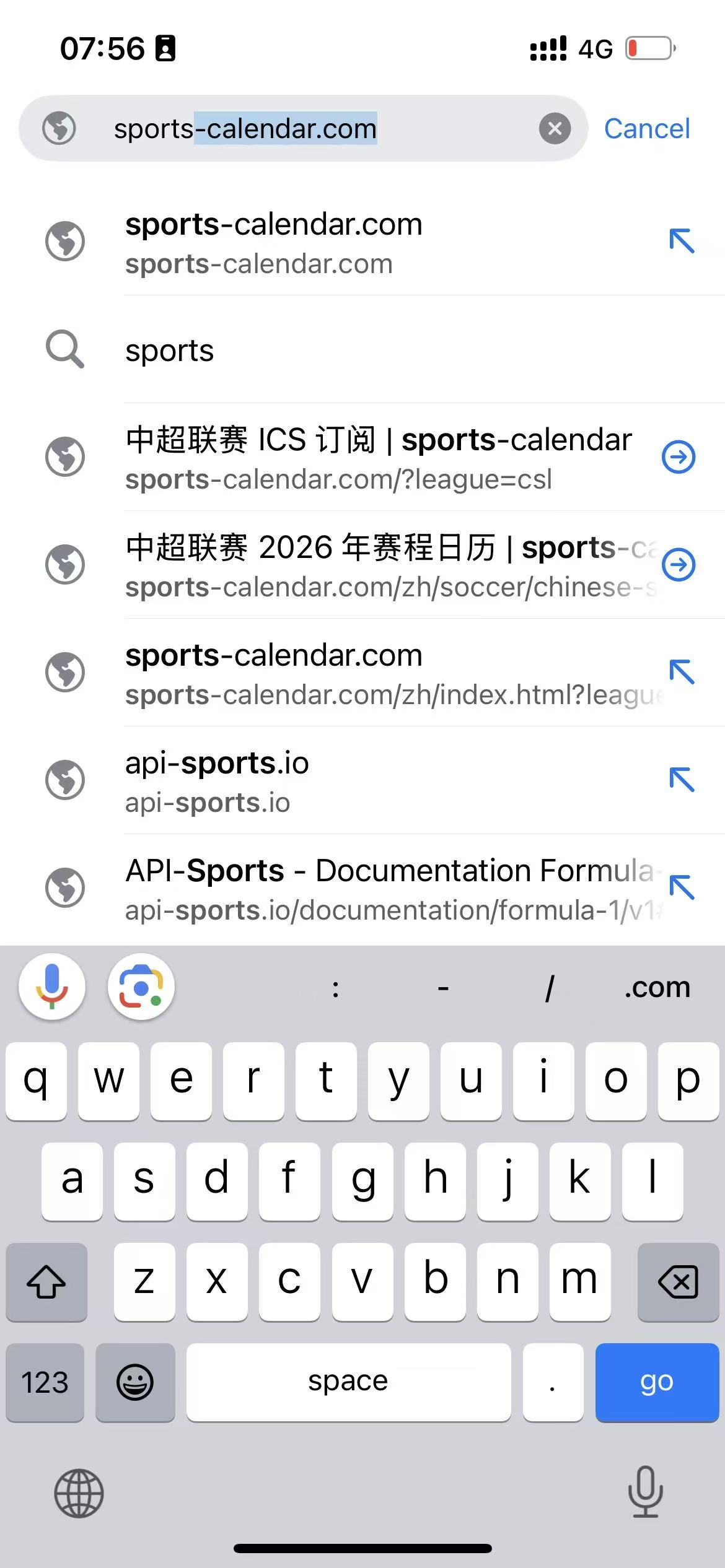
Type `sports-calendar.com` into Chrome or Safari on your iPhone and open the site homepage.
This guide shows the exact iPhone flow for opening a competition page, subscribing to its calendar feed, and checking the imported matches in Calendar.
Type `sports-calendar.com` into Chrome or Safari on your iPhone and open the site homepage.
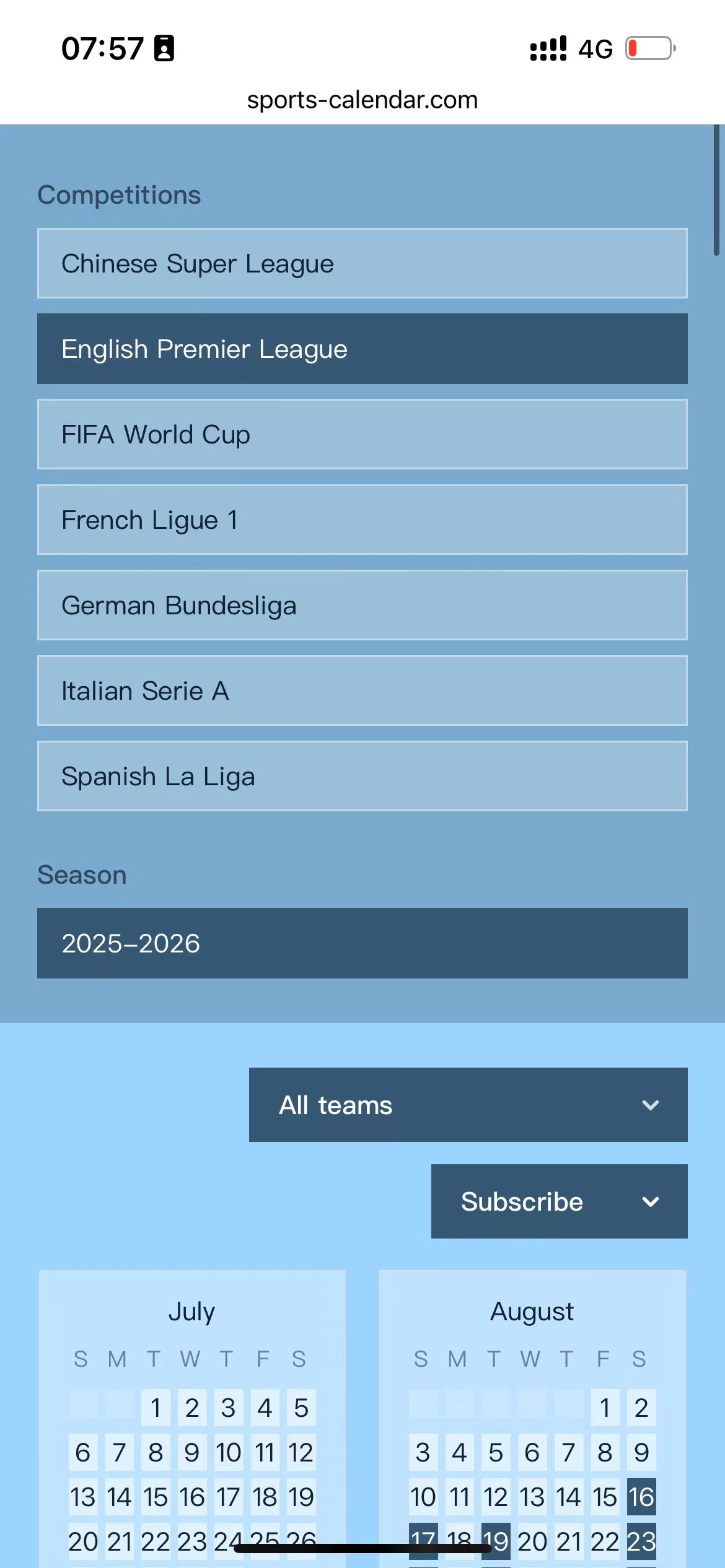
From the homepage, open the league or competition that you want to follow.

On the season page, confirm the competition and season, then tap the `Subscribe` button.
iPhone will open the subscription prompt automatically. Tap `Subscribe` to continue.
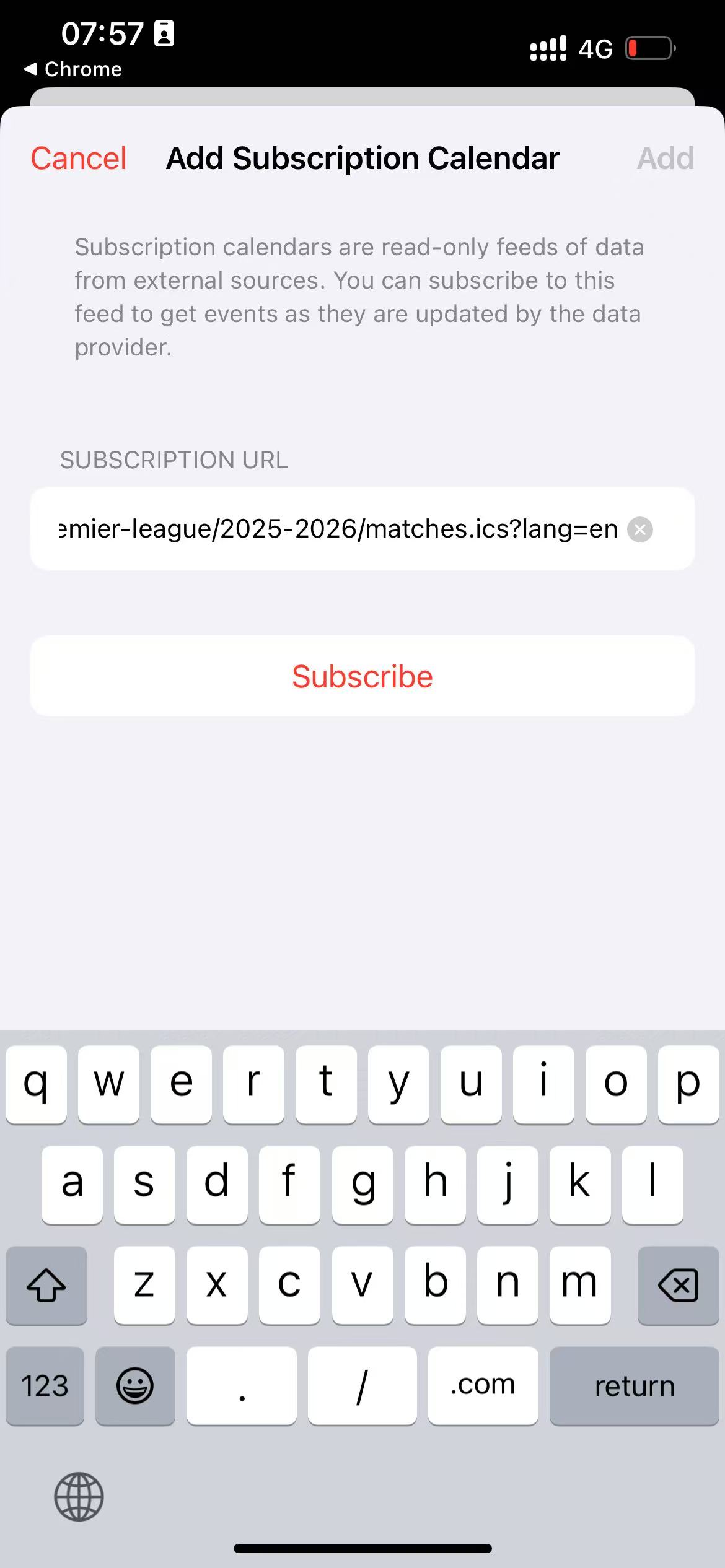
You can change the title, account, color, or notifications if needed. Then tap `Add` in the top-right corner.
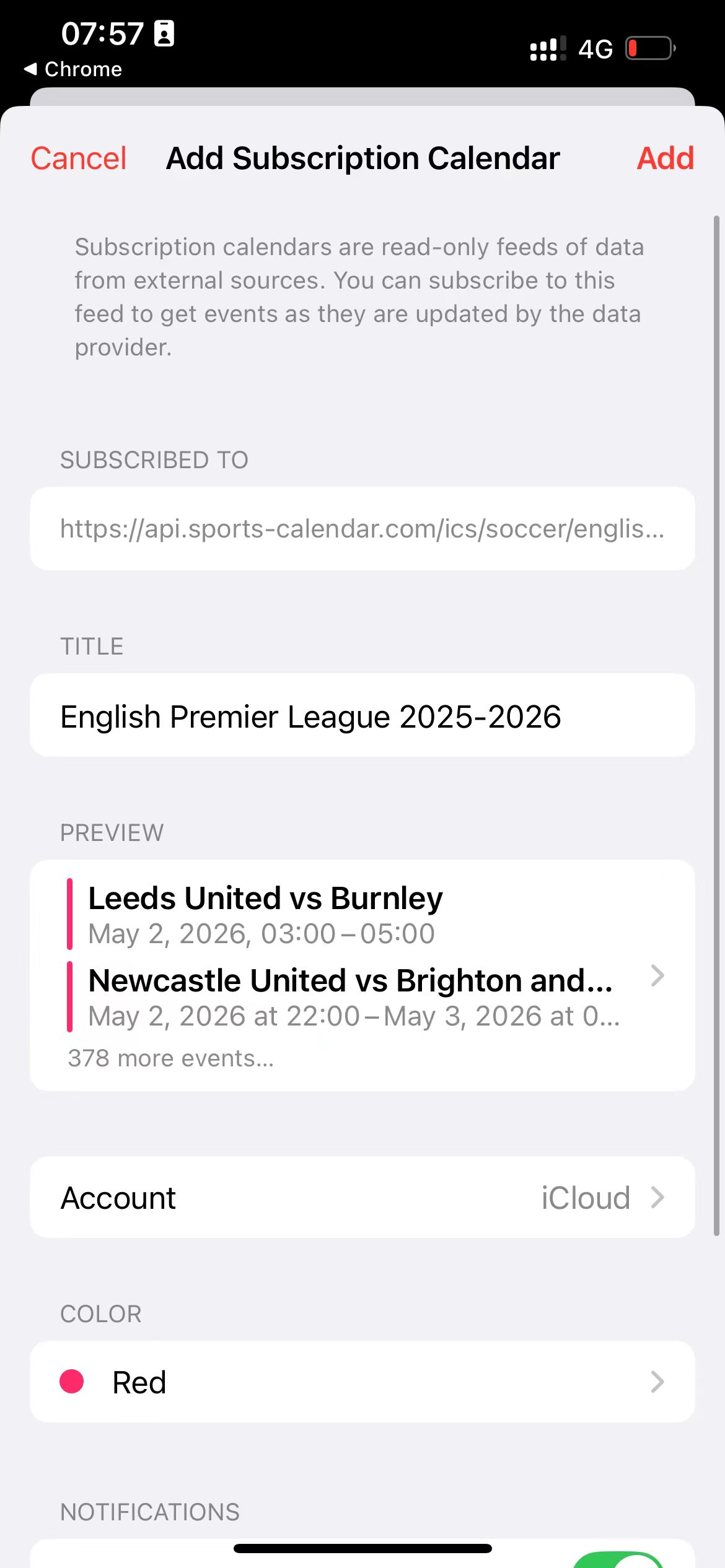
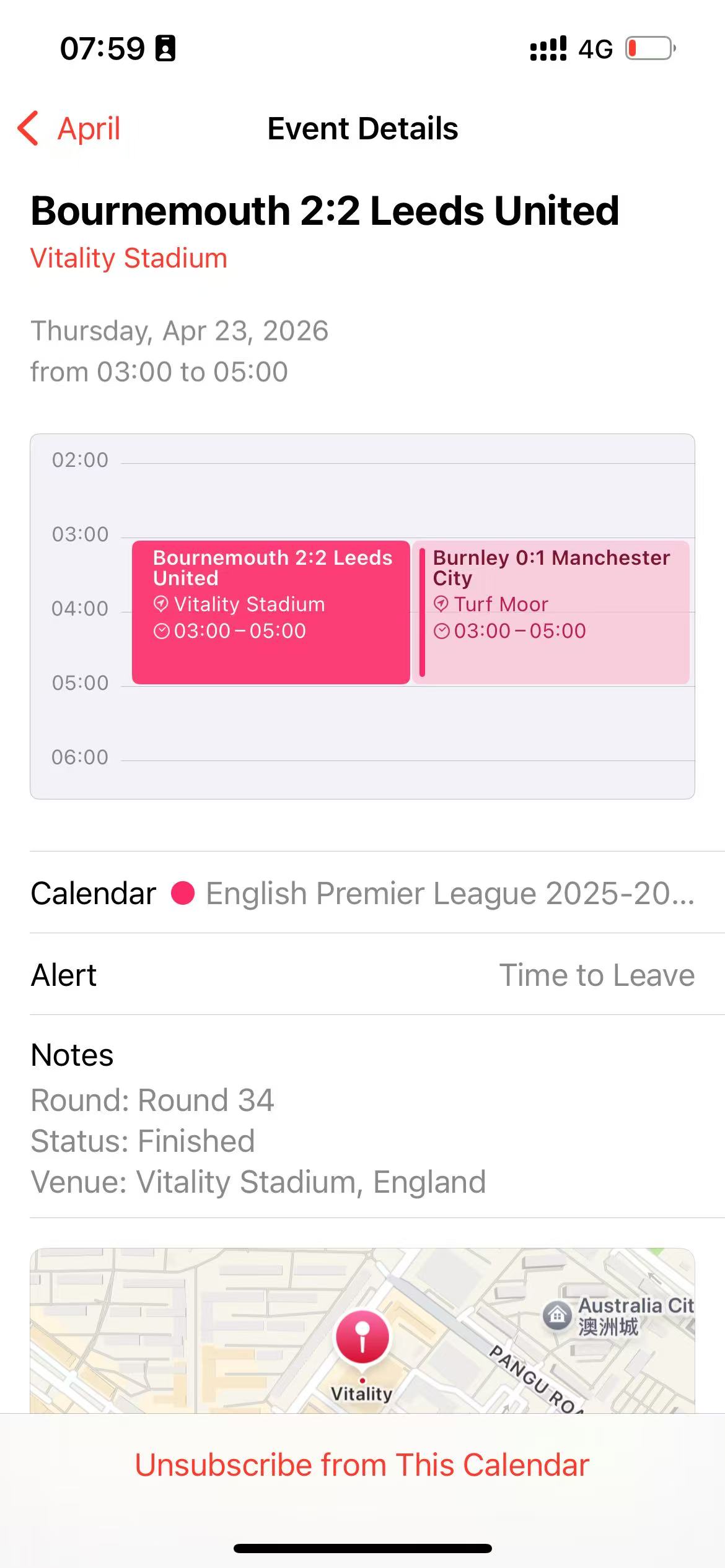
After adding it, the season schedule appears in the Calendar app and updates automatically when the source feed changes.
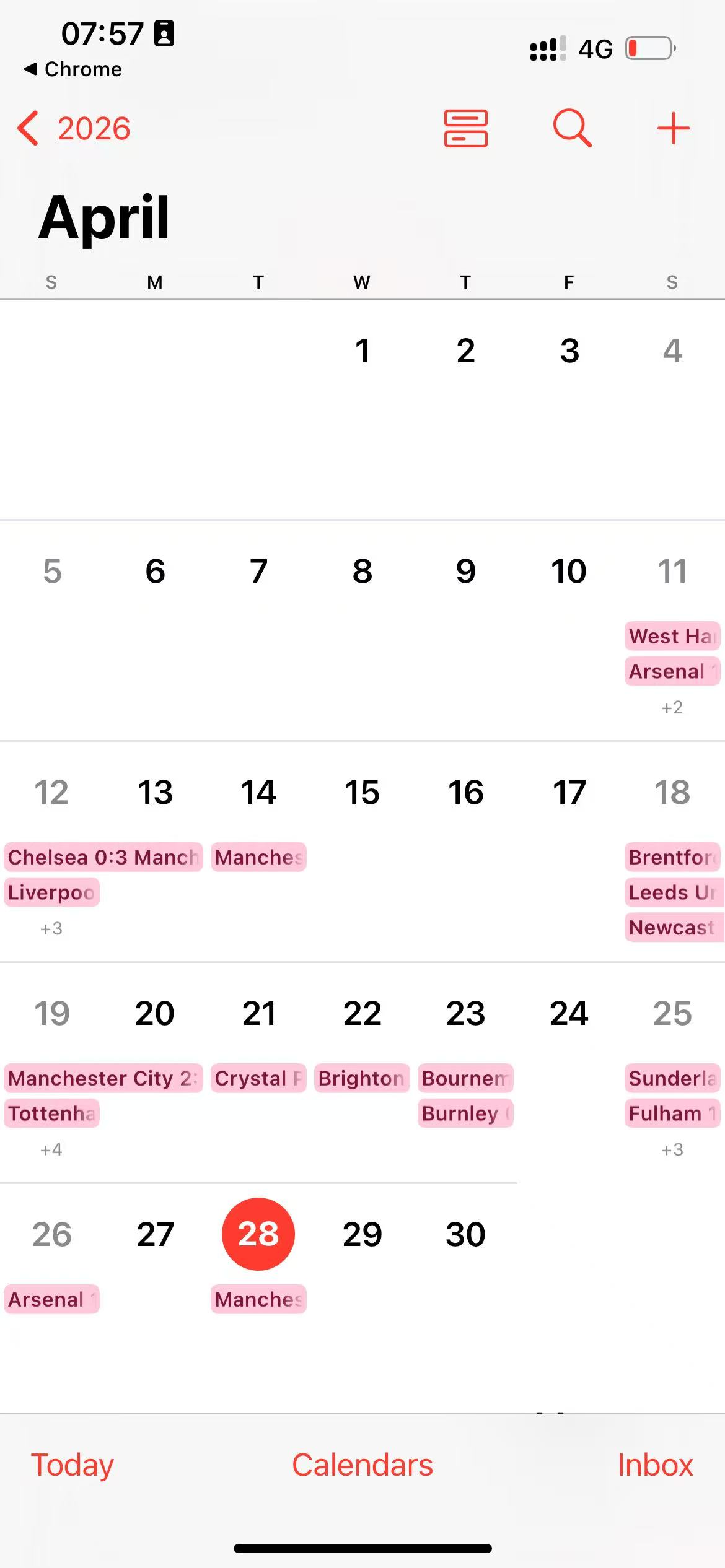
Each event includes the match title, time, venue, and notes from the feed.